Item:OSW52c2c5a6bbc84fcb8eab0fa69857e7dc
(Update package: OSW Docs - Core) Tags: Mobile edit Mobile web edit |
(Update package: OSW Docs - Core) |
||
| Line 1: | Line 1: | ||
== Create == | == Create == | ||
*Click on '''Create Instance''' on the Article card | |||
*A '''title''' for the entry is required | |||
*A '''description''' is '''optional''' but '''recommended''' as the entry can also be found via it | |||
*The title and description can be given in '''German''' and '''English''' | |||
*Additional '''properties''' can be '''added''' as required by clicking on them in the Select properties drop-down menu | |||
*'''Saving''' automatically redirects to the created entry | |||
{{Template:Viewer/Media | |||
| image_size = 600 | |||
| mode = default | |||
| textdata = File:OSWa8dde9a874314b20a9e6050b2321f8fc.gif{{!}}; | |||
}} | |||
== | == Attachment == | ||
*On the bottom of the page you can '''upload files''' via '''drag-and-drop''' or '''upload button''' | |||
*An '''attached file''' can also be '''integrated''' into the page, as can be seen under Visual Edit Article | |||
*{{Template:Decoration/ColoredText|text=If the attachment is an image under CC license please name the source e.g. in the description|red=1|blue=0|green=0|black=0}} | |||
{{Template:Viewer/Media | |||
| image_size = 600 | |||
| mode = default | |||
| textdata = File:OSWb3ac0e72469944759d674f1e23914786.gif{{!}}; | |||
}} | |||
== | == Edit Article == | ||
*Click on '''Edit data''' on the article page | |||
File: | *The '''properties''' of the article can be '''edited''' in the data editor e.g. | ||
File: | ** Add a description afterwards | ||
**Add an image to the entry that is also displayed in the search suggestion list (shown in gif) | |||
**... | |||
*Click on '''Save''' | |||
{{Template:Viewer/Media | |||
| image_size = 600 | |||
| mode = default | |||
| textdata = File:OSW0de6a9182efb4b7e8fabcc7b0782ba20.gif{{!}}; | |||
}} | |||
== Visual Edit Article == | |||
*Click on '''Edit data''' on the article page | |||
*There are various options to '''format''' your '''text''' | |||
{{Template:Viewer/Media | |||
| image_size = 600 | |||
| mode = default | |||
| textdata = File:OSW88f0f3a3a14d4c898839c5f2796dc642.gif{{!}}; | |||
}} | |||
*Various elements such as '''lists''', '''tables''' or '''media''' etc. can also be integrated into the article | |||
*Add media | |||
**'''Search''' for e.g. an image in the '''attachments''' or '''anywhere''' in ArkEve '''or''' | |||
**'''upload''' an image from you computer by clicking on the blue '''plus button''' | |||
***This opens a '''separate''' editor in which the image can be uploaded | |||
**{{Template:Decoration/ColoredText|text=If it is an image under CC license please name the source e.g. in the description|red=1|blue=0|green=0|black=0}} | |||
*'''Save''' the changes | |||
*For further information please have a look at the {{Template:Viewer/Link|page=|url=https://www.mediawiki.org/wiki/Help:VisualEditor/User_guide|label=General Userguide}} | |||
{{Template:Viewer/Media | |||
| image_size = 600 | |||
| mode = default | |||
| textdata = File:OSW43a9a2c9afff4830a032ec5f79a6cf77.gif{{!}}; | |||
}} | |||
== Special Editors == | == Special Editors == | ||
*In the '''visual edit mode (Edit button)''' elements such as '''diagrams''', '''spreadsheets''', '''chemical reactions''' and more can be inserted | |||
* | *Add DrawIo (shown in gif) | ||
**Click on Insert -> Template | |||
* | **To '''search''' for the desired template, start with '''Editor/''' | ||
* | ** A '''title''' is required | ||
* | **After saving, a '''placeholder''' appears in which you have to '''click''' on '''edit''' | ||
** Click on '''Save in DrawIo''' before leaving the page | |||
{{Template:Viewer/Media | |||
| image_size = 600 | |||
| mode = default | |||
| textdata = File:OSWc97ee7d5dc7e4b34875bafb4b24ee44e.gif{{!}}; | |||
File: | }} | ||
| jsondata | |||
|---|---|---|---|
| Line 1: | Line 1: | ||
{ | { | ||
"type": [ | |||
"Category:OSW494f660e6a714a1a9681c517bbb975da" | |||
], | |||
"uuid": "52c2c5a6-bbc8-4fcb-8eab-0fa69857e7dc", | |||
"label": [ | |||
{ | |||
"text": "Artikel erstellen und bearbeiten", | |||
"lang": "de" | |||
}, | |||
{ | |||
"text": "Article - Creation and Editing", | |||
"lang": "en" | |||
} | |||
], | |||
"description": [ | |||
{ | |||
"text": "Describes how to use the visual editor to create text and multimedia content. Please note: This applies for all entity categories/classes, not only Article.", | |||
"lang": "en" | |||
}, | |||
{ | |||
"text": "Beschreibt die Verwendung des visuellen Editors zur Erstellung von Text- und Multimedia-Inhalten. Hinweis: Diese Anleitung gilt für alle Entitätskategorien/Klassen, nicht nur für Artikel.", | |||
"lang": "de" | |||
} | |||
], | |||
"name": "HowToCreateANewArticle", | |||
"attachments": [ | |||
"File:OSW5f36a59d4bb94ea0bf93f08f7470f609.png", | |||
"File:OSWd1c24f1c4b014ebe99c2a83672e3dfc7.png", | |||
"File:OSW556c8a9e65374d0180c474b24d826836.png", | |||
"File:OSWd8adafab997746e69864f23e7bfba734.png", | |||
"File:OSWe26ed96136a5484baf478d932a12011b.png", | |||
"File:OSW0365cbb17a164607ad08287d35eb024d.png", | |||
"File:OSW11c9638f372240cf9a4166de0d532616.png", | |||
"File:OSWb2403f06d08d473d949c69703972f813.png", | |||
"File:OSW7f23cc02494e478e8f82715701b1d3ec.png", | |||
"File:OSW1a42918d85d942a7a3e9021c5955636d.png", | |||
"File:OSW13038cdc2bea45c7b9dee1352931a280.png", | |||
"File:OSWa13be5f5ea0c483689f5e70a7c2f68eb.png", | |||
"File:OSW857d85031d85425aa94db8b4720e84b7.png", | |||
"File:OSW2cdfab70f75d430ea1833967deea5260.png", | |||
"File:OSW6d68332009384d18970837e0b7536d89.png", | |||
"File:OSWa8dde9a874314b20a9e6050b2321f8fc.gif", | |||
"File:OSW0de6a9182efb4b7e8fabcc7b0782ba20.gif", | |||
"File:OSWc97ee7d5dc7e4b34875bafb4b24ee44e.gif", | |||
"File:OSW43a9a2c9afff4830a032ec5f79a6cf77.gif", | |||
"File:OSW88f0f3a3a14d4c898839c5f2796dc642.gif", | |||
"File:OSWb3ac0e72469944759d674f1e23914786.gif" | |||
], | |||
"statements": [ | |||
{ | |||
"uuid": "7386d44b-8b08-4e86-9237-e1e00d64cac5", | |||
"predicate": "Property:IsRelatedTo", | |||
"object": "Category:OSW92cc6b1a2e6b4bb7bad470dfdcfdaf26", | |||
"rdf_type": "rdf:Statement", | |||
"label": [ | |||
{ | |||
"text": ".. IsRelatedTo ..", | |||
"lang": "en" | |||
} | |||
] | |||
} | |||
], | |||
"part_of": [ | |||
"Item:OSW8a9c73cba7c64234bda71e1b682a641c" | |||
] | |||
} | } | ||
Revision as of 05:07, 13 January 2026
| Article - Creation and Editing ID: OSW52c2c5a6bbc84fcb8eab0fa69857e7dc | UUID: 52c2c5a6-bbc8-4fcb-8eab-0fa69857e7dc | 📦: world.opensemantic.meta.docs.core | |
|---|---|
| ID | OSW52c2c5a6bbc84fcb8eab0fa69857e7dc |
| UUID | 52c2c5a6-bbc8-4fcb-8eab-0fa69857e7dc |
| Label | Article - Creation and Editing |
| Machine compatible name | HowToCreateANewArticle |
| Types/Categories | Tutorial |
| Statements (outgoing) | |
| .. IsRelatedTo Article |
|
| Statements (incoming) | |
|
|
|
| Details | |
Description[edit source]
Describes how to use the visual editor to create text and multimedia content. Please note: This applies for all entity categories/classes, not only Article.
| Item | |
|---|---|
| Type(s)/Category(s) | Tutorial |
| Tutorial | |
|---|---|
| Prerequisites (required) | |
| Prerequisites (optional) | |
| Follow-up (recommended) | |
Create[edit | edit source]
- Click on Create Instance on the Article card
- A title for the entry is required
- A description is optional but recommended as the entry can also be found via it
- The title and description can be given in German and English
- Additional properties can be added as required by clicking on them in the Select properties drop-down menu
- Saving automatically redirects to the created entry

Attachment[edit | edit source]
- On the bottom of the page you can upload files via drag-and-drop or upload button
- An attached file can also be integrated into the page, as can be seen under Visual Edit Article
- If the attachment is an image under CC license please name the source e.g. in the description

Edit Article[edit | edit source]
- Click on Edit data on the article page
- The properties of the article can be edited in the data editor e.g.
- Add a description afterwards
- Add an image to the entry that is also displayed in the search suggestion list (shown in gif)
- ...
- Click on Save

Visual Edit Article[edit | edit source]
- Click on Edit data on the article page
- There are various options to format your text

- Various elements such as lists, tables or media etc. can also be integrated into the article
- Add media
- Search for e.g. an image in the attachments or anywhere in ArkEve or
- upload an image from you computer by clicking on the blue plus button
- This opens a separate editor in which the image can be uploaded
- If it is an image under CC license please name the source e.g. in the description
- Save the changes
- For further information please have a look at the General Userguide

Special Editors[edit | edit source]
- In the visual edit mode (Edit button) elements such as diagrams, spreadsheets, chemical reactions and more can be inserted
- Add DrawIo (shown in gif)
- Click on Insert -> Template
- To search for the desired template, start with Editor/
- A title is required
- After saving, a placeholder appears in which you have to click on edit
- Click on Save in DrawIo before leaving the page

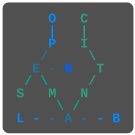
Tutorial Graph
Graph
QR Code
Attachments[edit source]


jsondata
| type |
| |||||||||||||||||||||
|---|---|---|---|---|---|---|---|---|---|---|---|---|---|---|---|---|---|---|---|---|---|---|
| uuid | "52c2c5a6-bbc8-4fcb-8eab-0fa69857e7dc" | |||||||||||||||||||||
| label |
| |||||||||||||||||||||
| description |
| |||||||||||||||||||||
| name | "HowToCreateANewArticle" | |||||||||||||||||||||
| attachments |
| |||||||||||||||||||||
| statements |
| |||||||||||||||||||||
| part_of |
|